Step-by-step guides
How to connect a domain to your Hekana store (buy a new one or connect yours)
The dashboard steps for putting a domain on your store: buying a new domain, or connecting one you already own by adding DNS records, and how to check that it worked.
4 min read
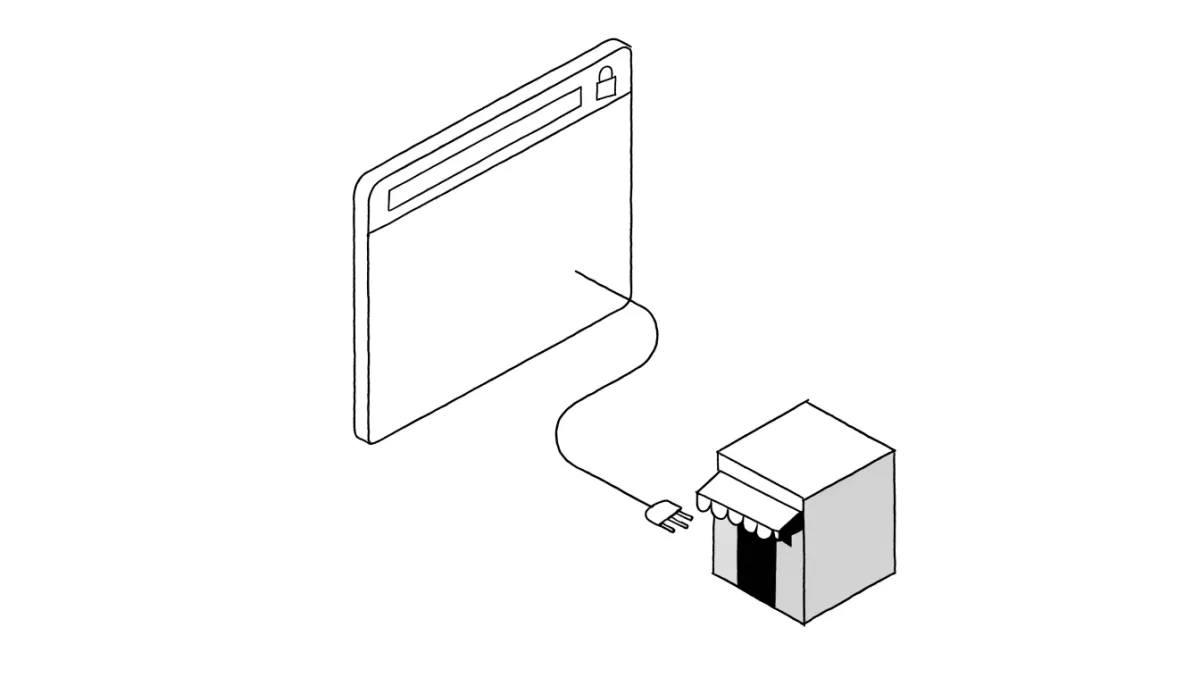
A domain is your store's address on the internet, like mystore.com. On Hekana there are two ways: buy a new domain from the dashboard, or connect one you already own from another provider. This guide covers both.
Where the page is
Open the Domains page from the store settings in the dashboard. The page shows your current store address, the domains linked to it, and the status of each.
Option one: buy a new domain
-
Search for the name. Under Purchase New Domain type the name you want (for example mystore) and press Search. The name must use lowercase English letters, numbers and hyphens only. You will see what is available and what is not, with the price shown before you pay.
-
Press Buy. A form for the domain registration details opens. It is filled in from your account, so review it and complete what is missing: name, email, phone number (an Egyptian number), the full address, city and postal code.
-
Choose a payment method. Credit or debit card, Vodafone Cash, Orange Cash, or an e-wallet, then press Pay.
-
Wait for registration. The domain is registered automatically after payment. The purchase status shows under Domains you bought: awaiting payment, registering, registered, or another state. It is linked to your store automatically.
Once registration completes, the DNS records become editable from the same page. Hekana also emails you 30, 14, 7 and 1 days before the domain expires.
Option two: connect a domain you own
-
Enter the domain. Under Connect a domain you own type the domain (for example example.com) and press Connect.
-
Open the setup instructions. Press Setup instructions. You will see the DNS records required (type A or CNAME) and each record's value, with a button to copy the value.
-
Add the records at your domain provider. Go to the DNS settings where you bought the domain and add the records with exactly the values shown. If Hekana can tell who your provider is, a link opens the DNS settings there.
-
Check again. Return to the page and press Check again. The page tells you the state:
- The domain points to your store correctly.
- Some records arrived and some are still missing.
- The domain does not point to your store yet.
- No DNS settings were found for this domain. If you just bought it, give its registration some time.
You also see which records are already in place, marked Already published, and which are missing.
-
Press Verify. Once the domain points to your store, press Verify. The domain appears under Linked Domains with the status Active.
If the check does not pass
- Compare the value you typed with the value in the instructions, character by character.
- Look at Published right now on the page: that is what Hekana actually found at the domain.
- If you only just bought the domain, give it time before you check again.
- If you are still stuck, the page has a Need help? section that points you to support.
Frequently asked questions
Will the domain have an SSL certificate?
The dashboard lists a free SSL certificate among the reasons to connect a domain.
Can I buy the domain through Hekana?
Yes, under Purchase New Domain. The full price is shown before you pay, and the domain is registered automatically after payment.
What domain names are accepted?
Lowercase English letters, numbers and hyphens only.
How do I know the connection worked?
The check says "The domain points to your store correctly", and after verifying the domain shows as Active.
Will Hekana remind me to renew?
For domains bought through the platform, yes: an email 30, 14, 7 and 1 days before expiry.
After connecting
A domain of your own makes the store look more professional, and afterwards you can add the store to Google Search Console. The steps are in the guide to appearing in Google results, and if you are starting from scratch see how to start an online store in Egypt. For the store itself: the your store feature page.