How to get your store on Google: connect your Hekana store to Google Search Console
4 min read
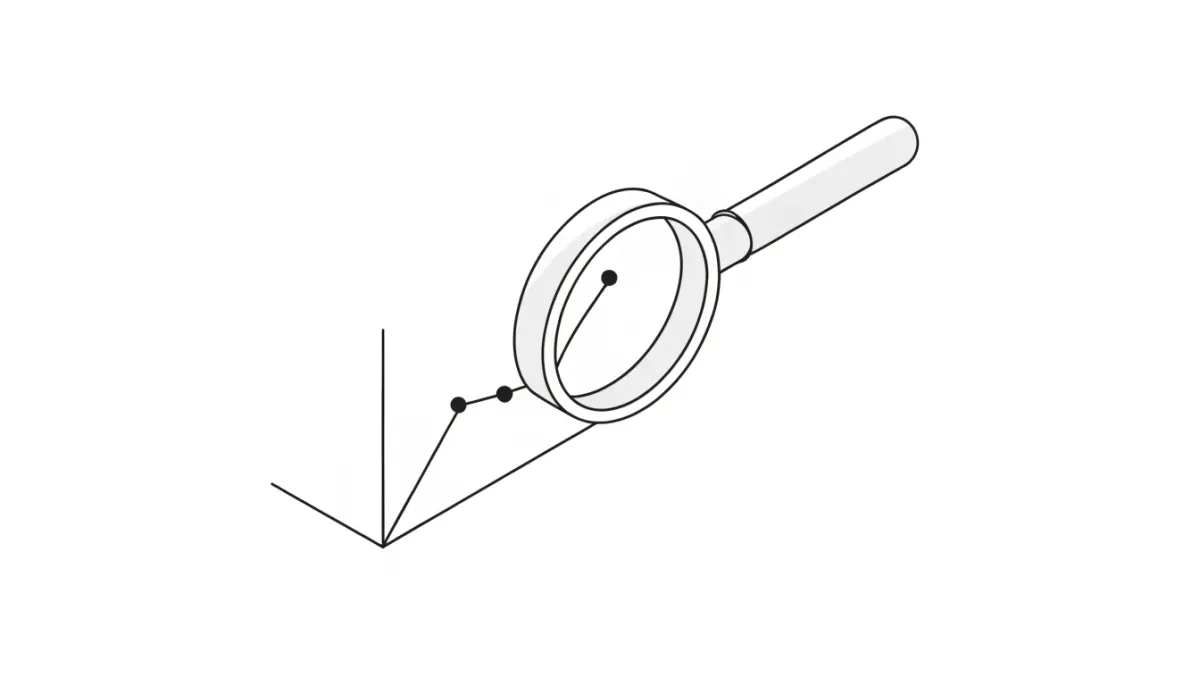
If you want to know what people search for before they reach your store, and which of its pages Google can see, the first step is Google Search Console. Connecting it takes minutes, and it is available on every Hekana plan, including Free.
1. What Google Search Console is and why it matters
Google Search Console is a free Google tool for site owners. Once your store is connected you can see:
- Searches: the words people typed when your store showed up.
- Impressions: how many times your store appeared in search results.
- Clicks: how many people clicked through to your store from Google.
- Indexing problems: pages Google could not add to its results, and why.
The tool does not rank your store higher on its own. It shows you what is actually happening so you can improve on it.
2. Add your store to Search Console
- Open search.google.com/search-console and sign in with your Google account.
- Click Add property and choose URL prefix.
- Paste your store URL. It is ready to copy in your dashboard: Settings → Search engine verification.
The URL shown there is your custom domain if your store has a live one, otherwise your store's Hekana address, such as https://your-store.hekana.com. If your store opens on both and you want to follow both, add each one as a separate property and verify it the same way.
3. Choose the HTML tag method and copy the code
On the verification screen Google offers several methods. Choose HTML tag, and you will see a line like this:
<meta name="google-site-verification" content="your-code" />
Copy it as it is. You do not need to pick the code out yourself.
4. Paste the code in Hekana and save
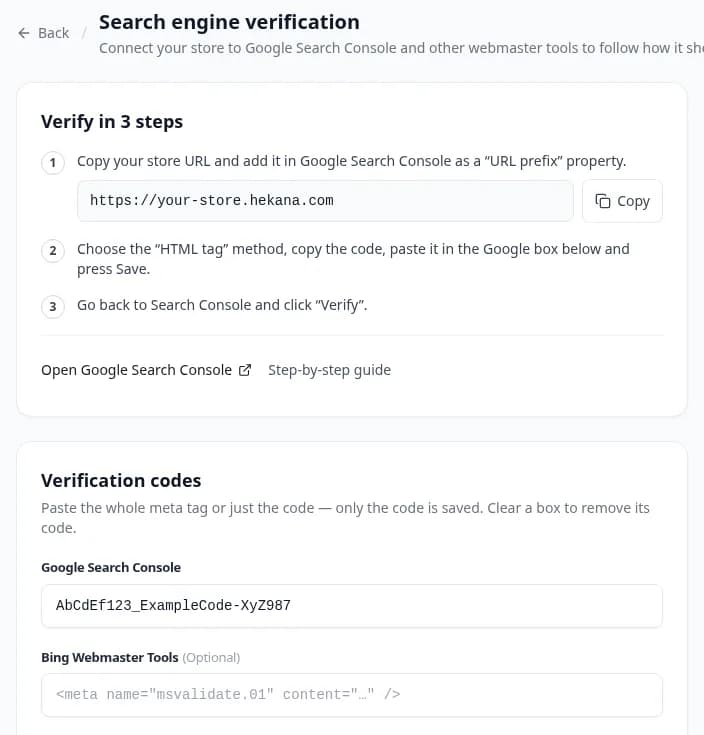 The Search engine verification page in the Hekana dashboard
- In your dashboard open Settings → Search engine verification. (You can also get there from Page settings in Design.)
- Paste what you copied into the Google Search Console box. You can paste the whole line or only the code; only the code is saved.
- Press Save.
The code is added to your store pages right away, on your Hekana address and on your custom domain. If what you paste is not a verification code, the box tells you before you save.
5. Go back to Google and click Verify
Return to Search Console and click Verify. If you get an error:
- Check that the URL you added in Search Console is exactly the one on the settings page.
- Check that the code saved in the Google box is the same code shown on the verification screen.
- Wait a minute and try again.
Keep the code saved after verifying. Google re-checks it from time to time, and removing it can undo the verification.
6. Submit your sitemap
Every Hekana store builds its own sitemap with its pages, products and categories. Its address is your store URL followed by /sitemap.xml, for example:
https://your-store.hekana.com/sitemap.xml
That exact URL is shown on the same settings page with a copy button. In Search Console open Sitemaps from the menu, paste the URL and click Submit.
7. What to check afterwards
- Performance: the searches you appeared in, impressions and clicks.
- Pages: which pages are indexed, which are not, and why.
- URL Inspection: enter the link of a specific product and see how Google sees it.
Numbers do not appear the same day. Google takes from a few days to a few weeks to crawl your pages and start reporting, especially for a new store.
8. Tips that help Google understand your store
- Clear product names: name a product the way a customer searches for it, such as "Kids cotton pyjama set, age 4" rather than "Model 12". The product name is also the description written on its image in your store.
- Real descriptions: describe the material, sizes and use in your own words, and do not copy one description across every product.
- Page titles and descriptions: in Design, open Page settings to write each page's title and description as they will appear in search results.
- Your own domain: on paid plans you can connect your own domain, and a name like
yourbrand.comis easier to remember and share, and the code and sitemap work on it the same way. See the plans. - Share your links: the more your store link is shared on social media and WhatsApp, the more people reach it and search for it by name.
If you are still comparing platforms, read how to choose the best e-commerce platform in Egypt.
9. FAQ
Is this available on the Free plan? Yes. The Search engine verification page is available on every plan, Free included.
My store has a custom domain. Which URL do I use? Use the URL shown on the settings page. If your custom domain is live, that is the one. The code appears on both your custom domain and your Hekana address.
Can I connect Bing, Pinterest or Meta too? Yes. The same page has boxes for Bing Webmaster Tools, Yandex, Meta (Facebook) domain verification and Pinterest. Each takes its own code the same way.
I want to remove the code. Clear the box and press Save.